
EZFolderPin · Practical guides
Mac Menu Bar and Global Hotkey Workflow for Switching Project Folders
Compare Spotlight and Finder shortcuts with EZFolderPin’s 1.4.0 menu bar capsules and global hotkeys. Plan a practical project-folder workflow.
EZFolderPin 1.5.0 · macOS 14 or later
Switching from an editor to a project folder should not require remembering a long directory path. macOS already offers search and Finder navigation keys. A menu bar folder panel can complement them when you repeatedly visit the same small set of locations.
This guide is by CleverFern, the developer of EZFolderPin. As of November 25, 2026, EZFolderPin 1.4.0 is live on the Mac App Store. Menu Bar Quick Capsules, global shortcuts and recent-item hover previews are included in this release. The images below show the current version.
Start with Spotlight and Finder’s own shortcuts
| Entry point | How to use it | Best fit |
|---|---|---|
| Spotlight | Press ⌘Space and search for a folder by name | Occasional destinations or folders you recognize by name. |
| Finder Go to Folder | With Finder active, press ⇧⌘G and enter a path | Known paths and precise directory navigation. |
| Finder location shortcuts | With Finder active, use ⇧⌘H for Home or ⌥⌘L for Downloads | Standard system locations. |
| EZFolderPin 1.4.0 | Assign a global hotkey to its menu bar panel, then choose a saved folder | A short, stable set of project destinations. |
Spotlight is a system search entry point; Finder’s navigation commands operate in Finder. If search or a known path already gets you where you need to go, keep that habit. System assignments can vary with keyboard and input settings. Apple’s keyboard shortcut reference
Choose a project from Menu Bar Quick Capsules
In EZFolderPin 1.4.0, Menu Bar Quick Capsules provide another entry to your saved folder bookmarks. Open the panel from the menu bar and choose a folder to open it in Finder. This suits a few recurring destinations such as Current Project, Resources and Deliverables.
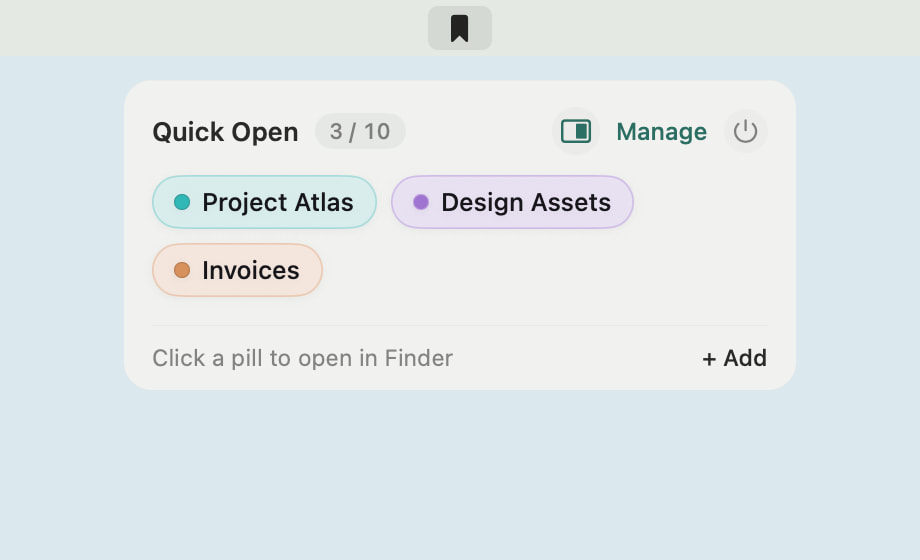
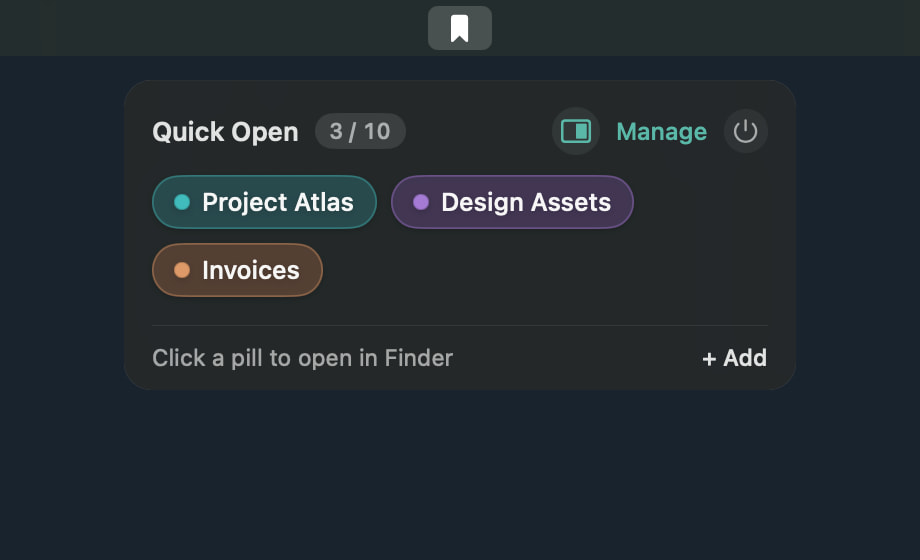
EZFolderPin 1.4.0 also includes hover previews of up to 8 recent items. Treat this as a quick look at recent contents; use Finder for full directory browsing and file operations.
Assign a hotkey to the action you need
In 1.4.0, open General → Shortcuts and record a binding for opening the Quick Capsule popover or showing and hiding the edge rail. These global actions can work while another app is active and do not require Accessibility permission.
Candidate combinations include ⌃⌥1 through ⌃⌥0, ⌃⌥Space, ⌃⌥B and ⌃⌥M. Here ⌃ means Control and ⌥ means Option. Choose a combination for an action shown in the app; the number keys are not a preassigned set of ten folder-opening commands. Check the saved action and binding rather than assuming a default.
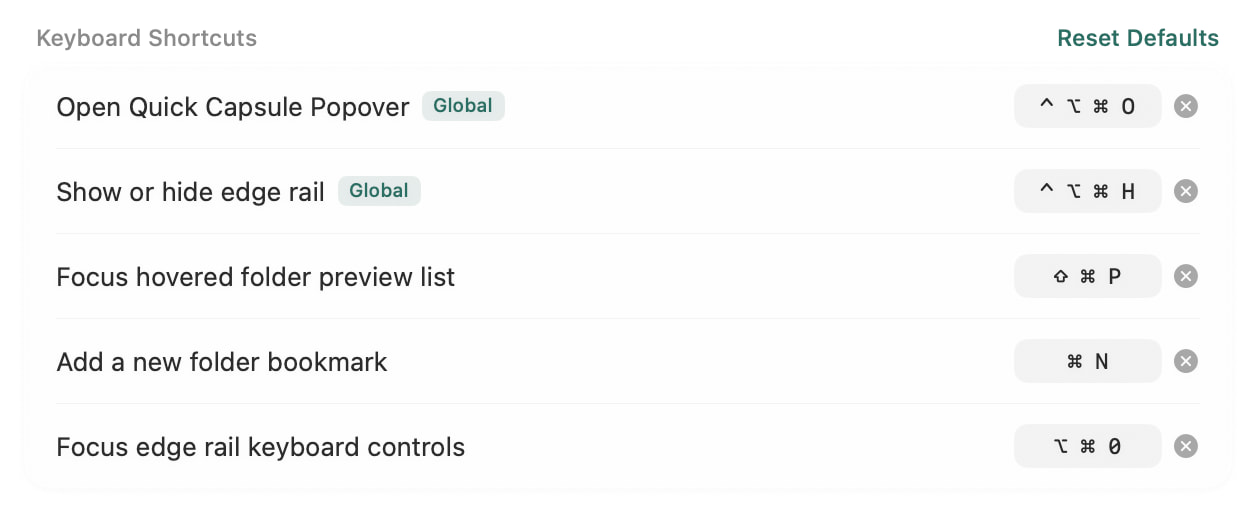
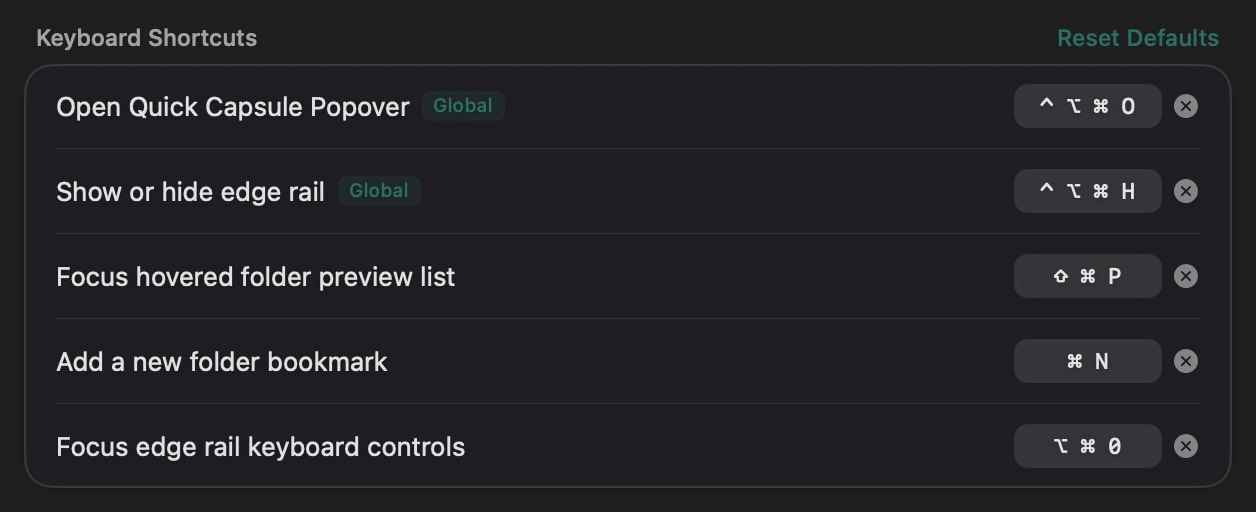
The Global label distinguishes system-wide actions from commands that need EZFolderPin or its controls to have focus. If a chosen key combination conflicts with another tool, change one binding. A shortcut to the panel gives you access to the folder choices; it does not switch a terminal’s working directory or an editor’s open project.
Build a routine around three destinations
- Keep your active project, shared resources and export directory in a recognizable saved order.
- In the EZFolderPin 1.4.0 workflow, use your assigned global shortcut to bring up Quick Capsules while working in another app.
- Choose the destination to open it in Finder, then return to your working app.
- Keep Spotlight for occasional folders and ⇧⌘G for paths you already know.
If you use an external drive or network share, it must be connected and accessible. A saved shortcut does not download or duplicate the folder. For a multi-display setup, rail placement and the display where Finder opens are separate choices.
What you can use today
The current Mac App Store download is EZFolderPin 1.4.0, with screen-edge folder bookmarks, menu bar access and the global-hotkey workflow described above. EZFolderPin requires macOS 14 or later.
Three bookmarks are free forever. An optional 7-day non-renewing trial and a one-time lifetime unlock support up to 10 bookmarks. There is no subscription, Family Sharing is supported, and your local price is shown in the Mac App Store.
View the current EZFolderPin download in the Mac App Store. See EZFolderPin Support for the version-specific guide, or compare Finder Sidebar, Dock and edge bookmarks.