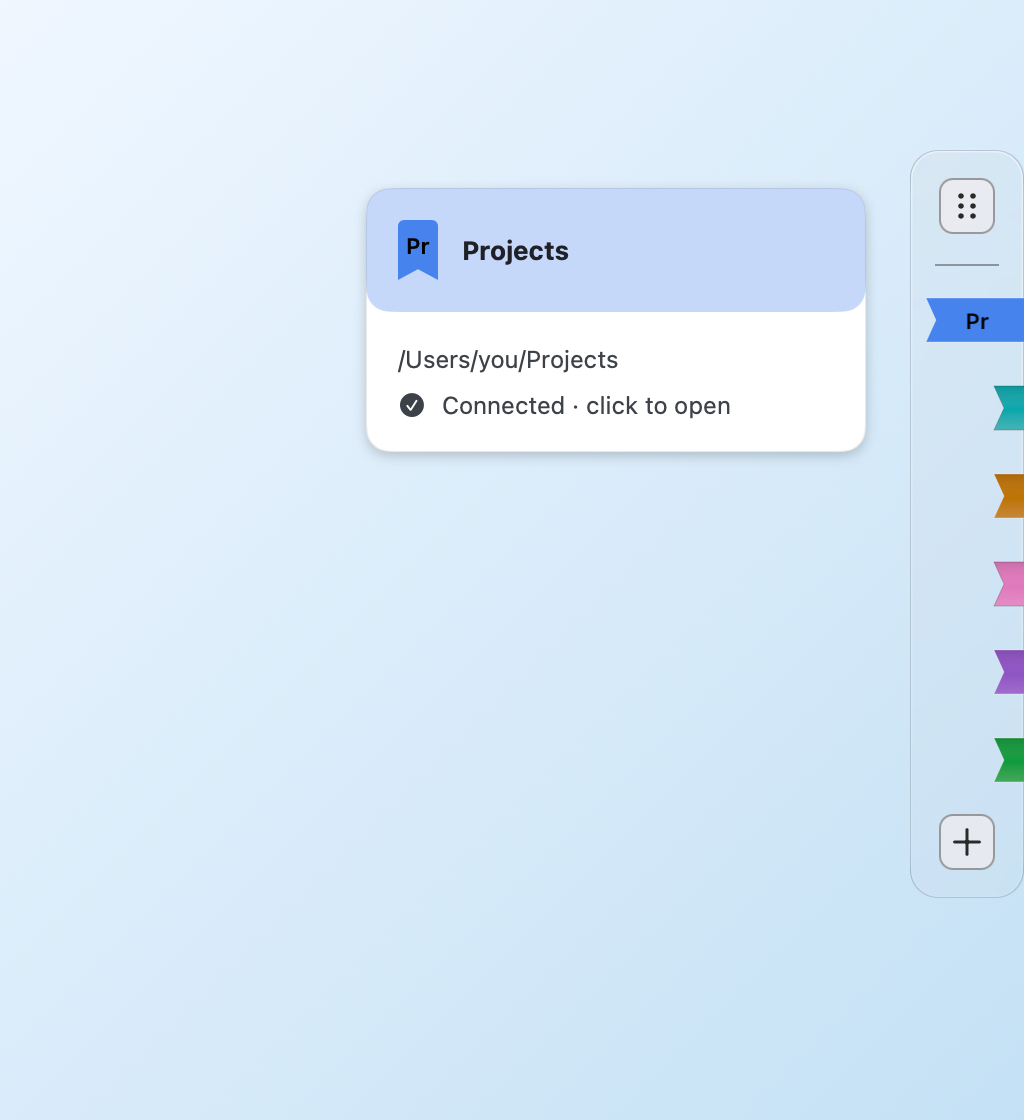
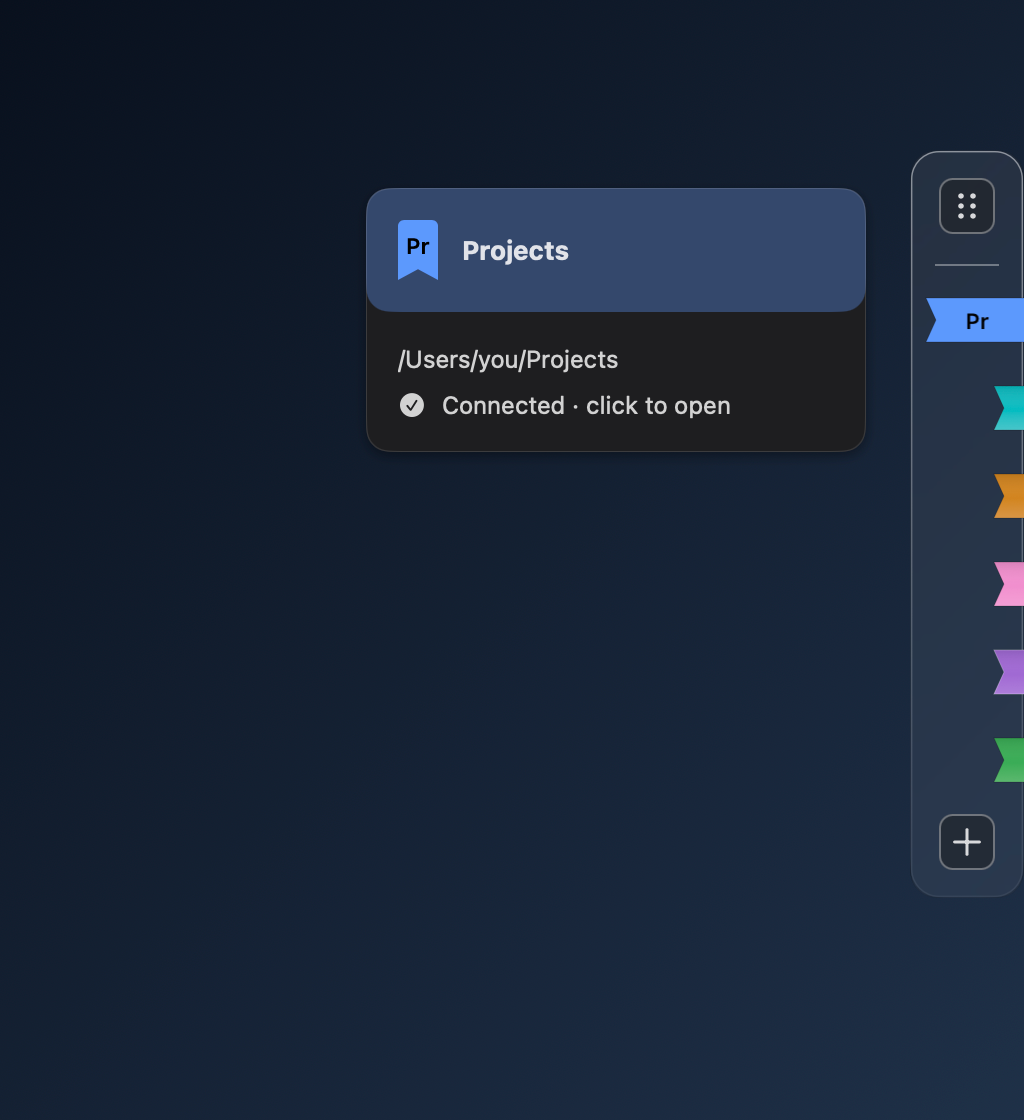
Choose a folder
Use the first-launch setup, Add Folder in the bookmark manager, or the + control beside the edge rail.
EZFolderPin · Folder bookmarks for Mac
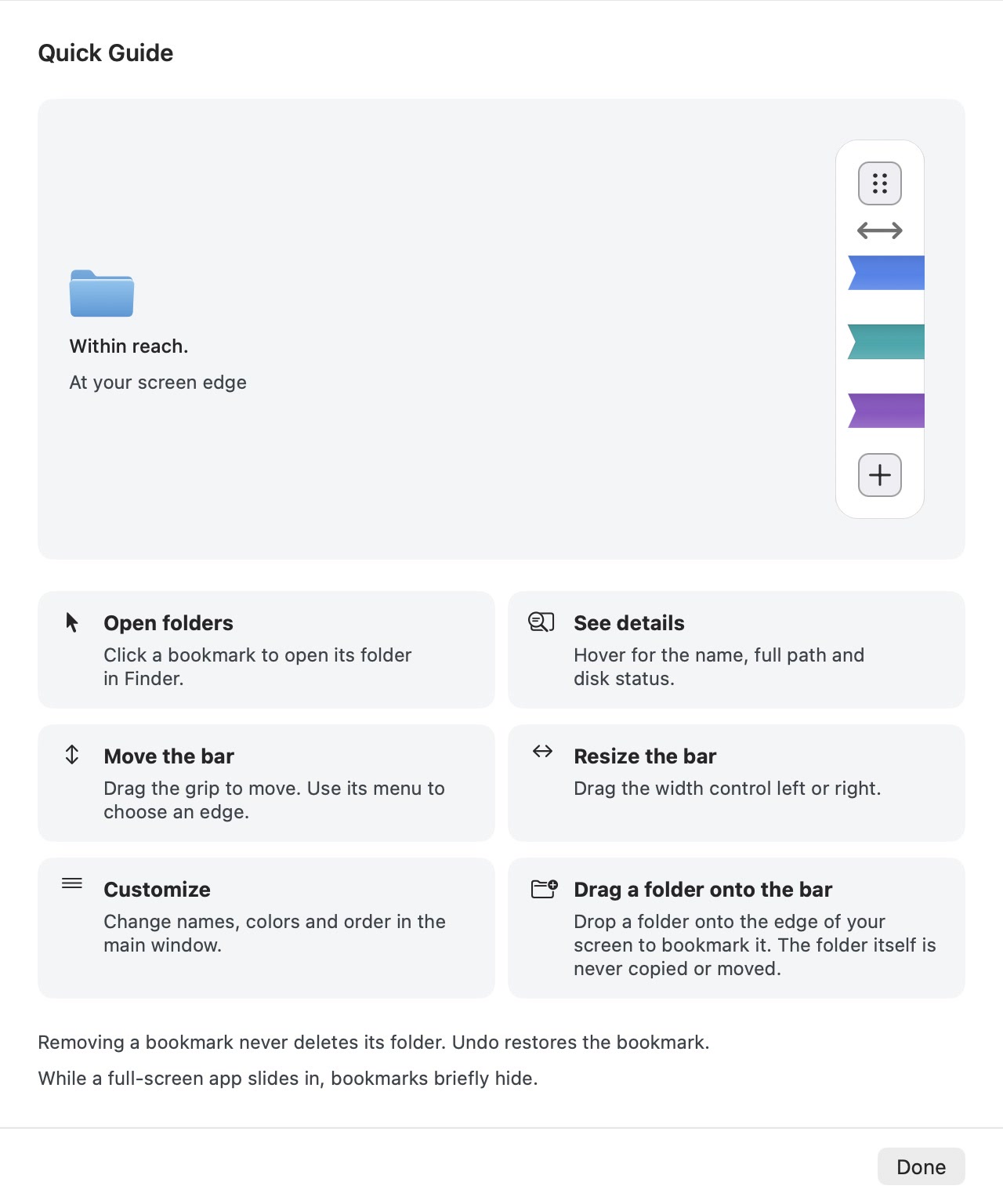
EZFolderPin keeps colorful folder shortcuts at the left or right edge of your Mac screen. Click a bookmark to open its folder in Finder. Keep 3 bookmarks free forever, or unlock up to 10 when you need more.
macOS 14 or later
Current download: 1.2.0. 3 bookmarks free forever. Optional 7-day trial or one-time purchase for up to 10. No subscription or automatic trial charge.
How it works
Use the first-launch setup, Add Folder in the bookmark manager, or the + control beside the edge rail.
Give the bookmark a display name and color. Drag to arrange bookmarks and position the rail on either screen edge.
Hover to check a bookmark’s name, path, and availability. Click it to open the folder in Finder.
Your daily locations
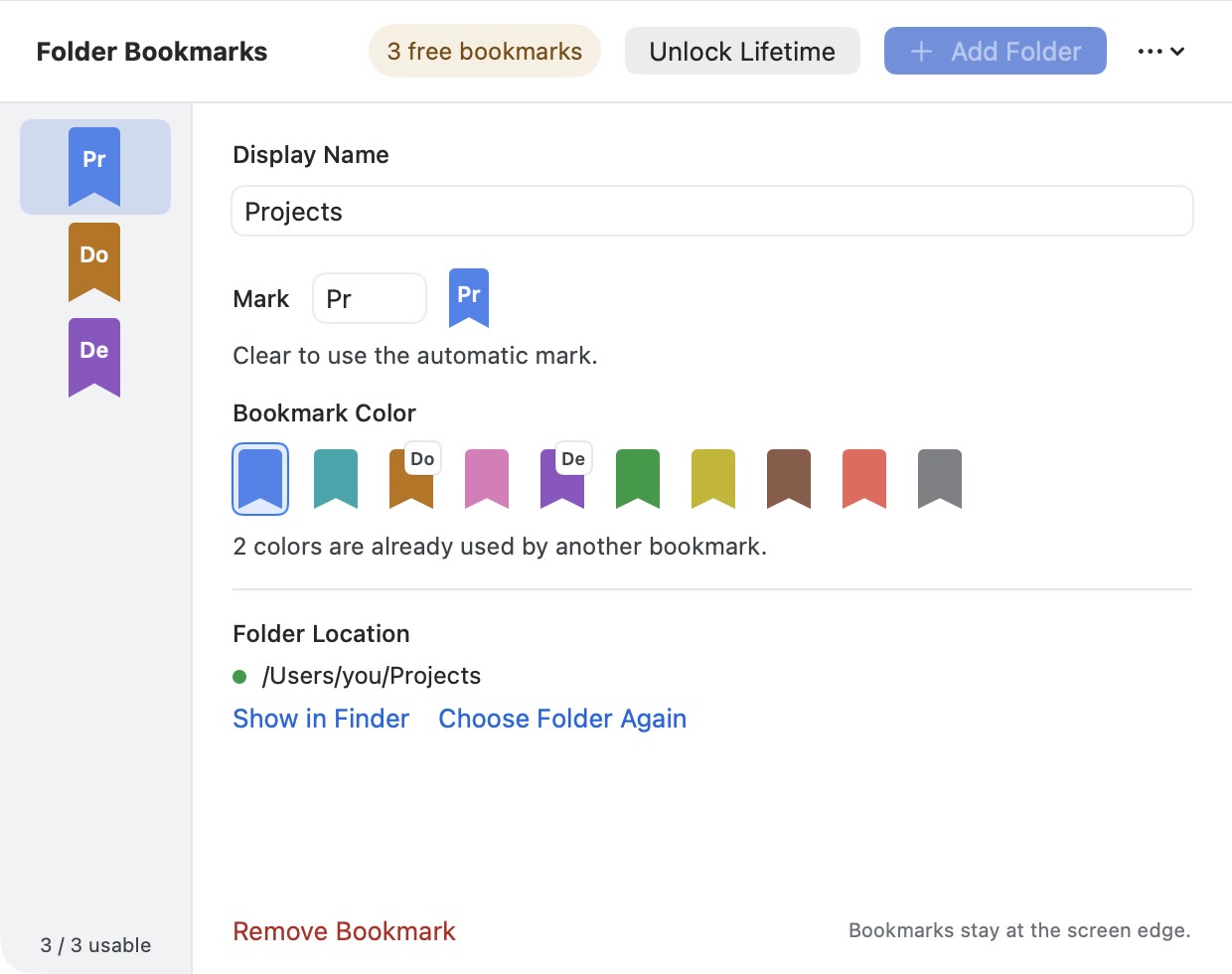
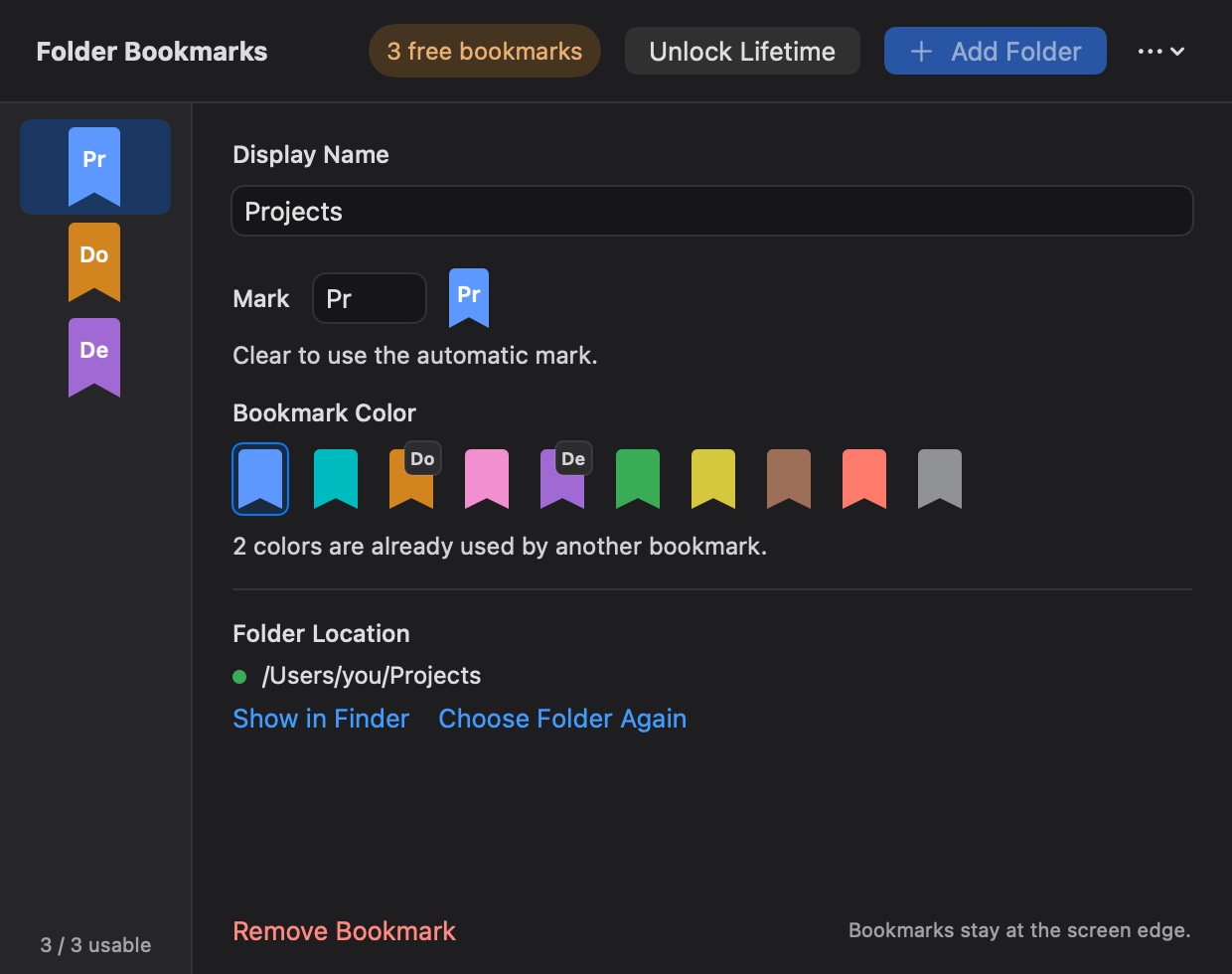
Manage your bookmarks in one native window. Select a bookmark on the rack to edit its details in the inspector beside it, or add a folder with the macOS picker.
A name and a color
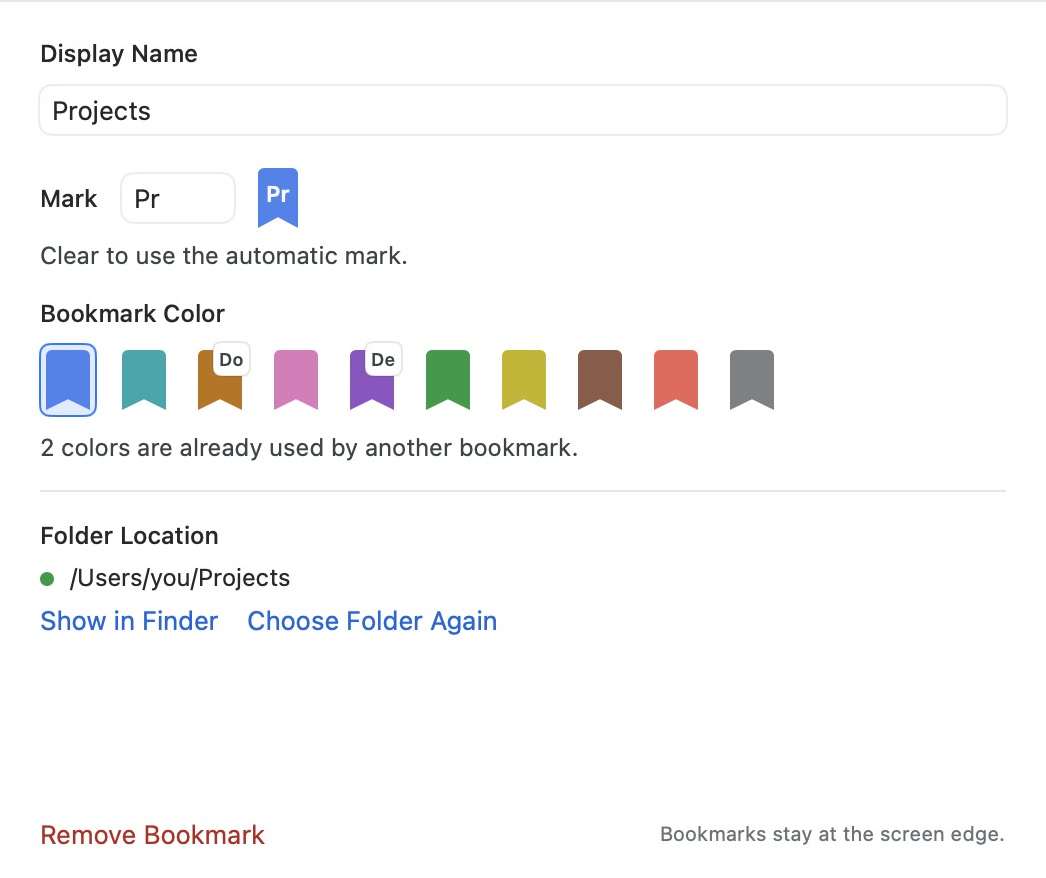
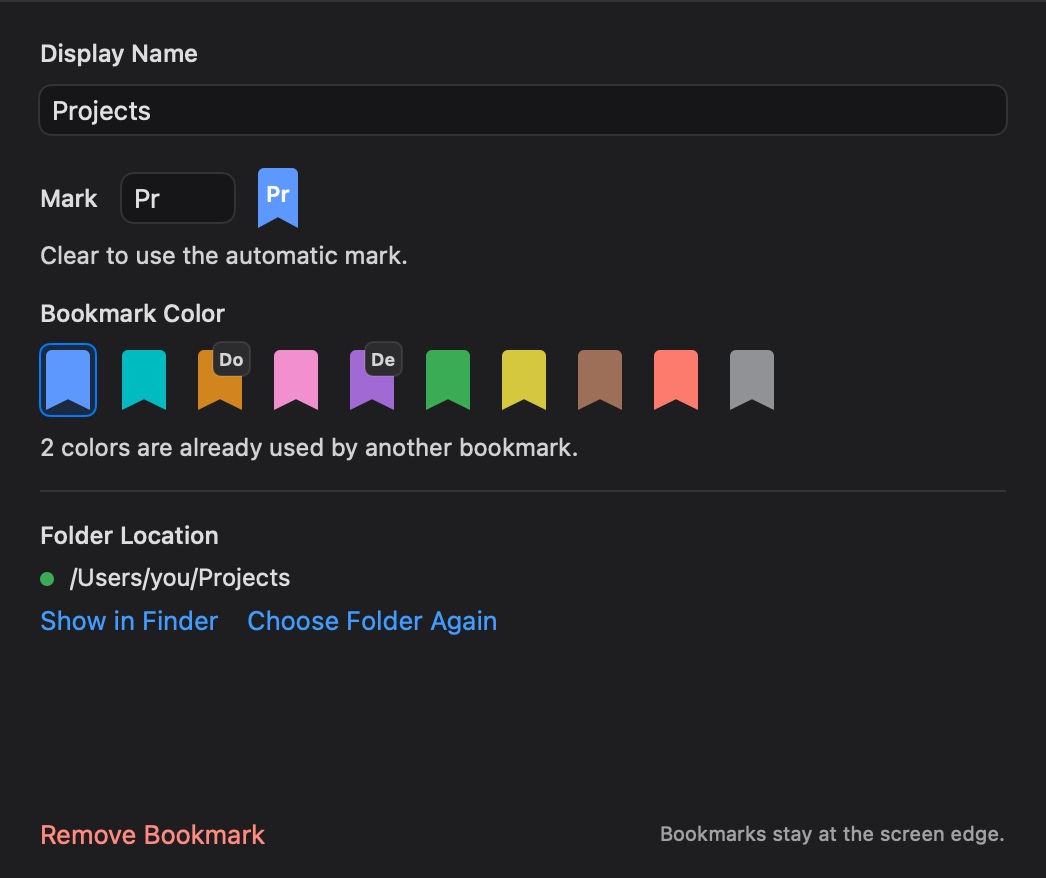
Choose a display name, color, and mark in the manager’s inspector. The saved path tells you which folder it opens; changing a bookmark’s name does not rename the folder.
A rail that fits
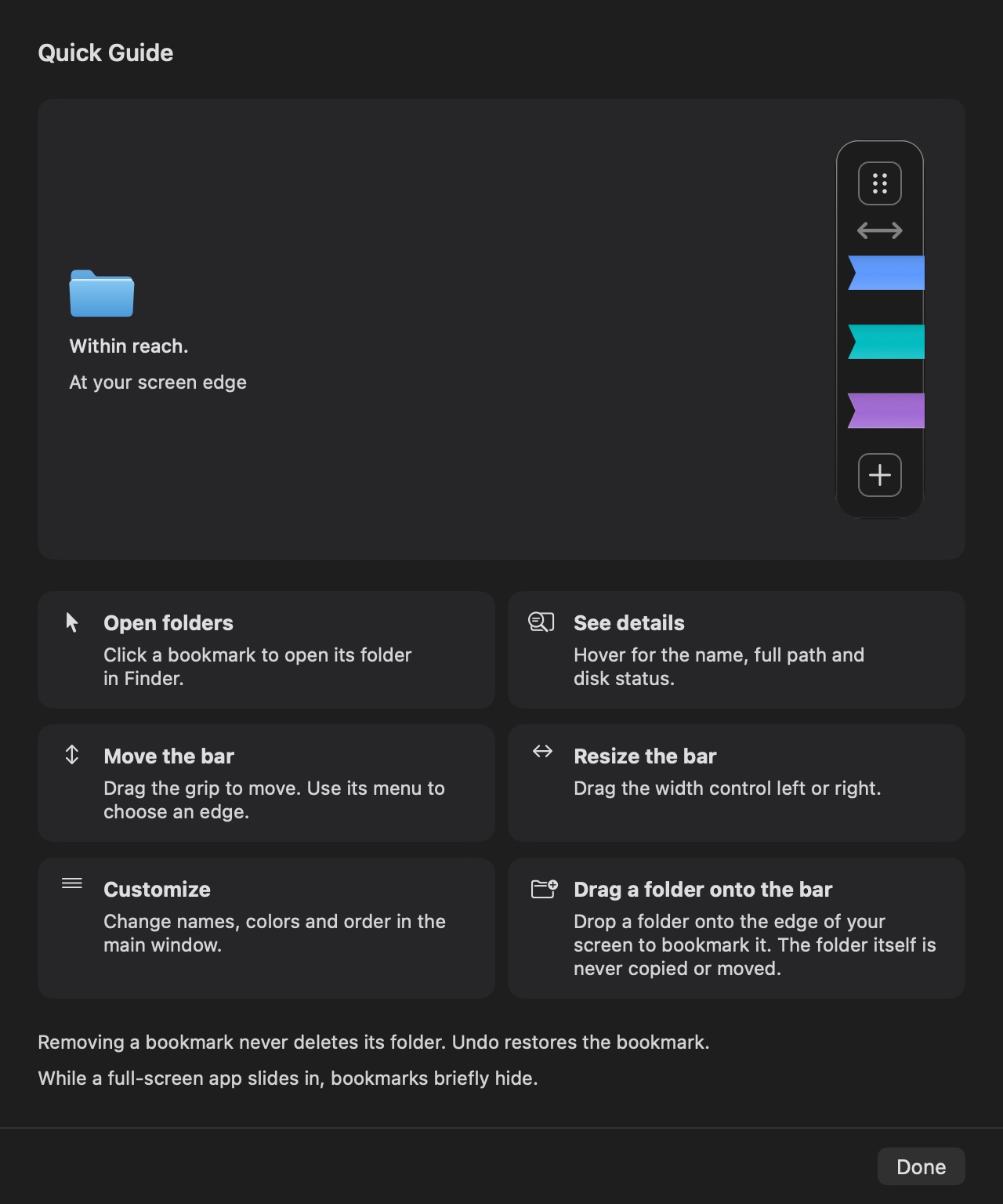
Use the rail handle to move the group up or down, drag the divider to adjust its width, and dock it on the left or right edge. The Quick Guide explains the controls.
When a location changes
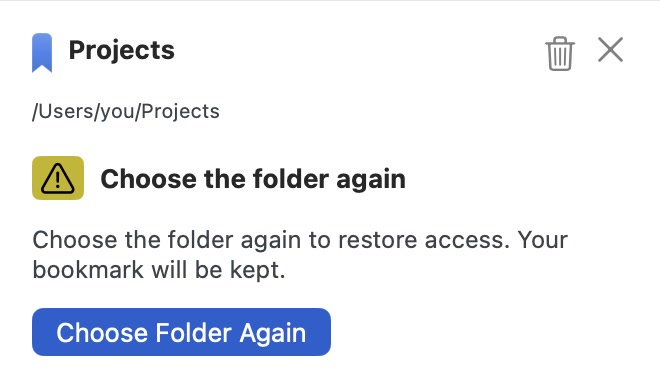
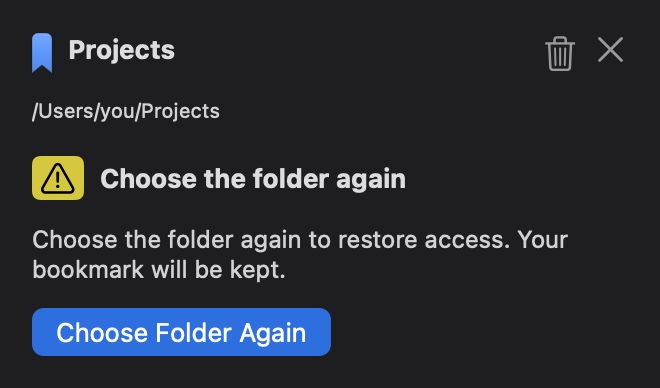
An unavailable disk and a folder that needs renewed access have different recovery paths. Reconnect a disk, or choose the folder again when the app asks.
In version 1.2.0
Use the first 3 bookmarks in your saved order free forever. Reorder to change the free set; removing one brings the next into the allowance. Choose an optional seven-day full trial or a one-time purchase for up to 10 bookmarks. The trial does not renew or automatically charge you. When it ends, your first 3 remain usable and extra bookmarks stay saved.
EZFolderPin for Mac
Bookmarks and preferences stay on your Mac. EZFolderPin uses read-only access to selected folders and opens them in Finder. It has no app account, advertising, analytics, or developer-operated cloud sync.
Read the privacy policyEZFolderPin
Set up your first bookmarks
Add three free folder bookmarks with EZFolderPin for Mac. Follow the steps to name, color, arrange and recover your everyday folder shortcuts.
Choose an approach
Compare Finder sidebar favorites, Dock folders and EZFolderPin screen-edge bookmarks. Choose folder shortcuts that fit how you work on your Mac.
Arrange a multi-display workspace
Set up project folder shortcuts on a multi-monitor Mac. Choose the EZFolderPin rail’s display, adjust its position and check placement after reconnecting.
macOS 14 or later
Current download: 1.2.0. 3 bookmarks free forever. Optional 7-day trial or one-time purchase for up to 10. No subscription or automatic trial charge.