
EZFolderPin · Practical guides
How to Keep Your Mac Desktop Clean Without Losing Fast Folder Access
Keep everyday folders within reach without filling your Mac desktop. Compare aliases, Stacks, Finder Sidebar, Dock folders and screen-edge bookmarks.
EZFolderPin 1.5.0 · macOS 14 or later
A clean desktop still needs a convenient route to the folders you use all day. Start by separating where a folder lives from where its shortcut appears. A project can stay in its existing directory while the Finder sidebar, Dock or a bookmark points to it.
This guide is written by CleverFern, the developer of EZFolderPin. The built-in options below may cover everything you need. As of November 25, 2026, EZFolderPin 1.4.0 is live on the Mac App Store. The screenshots show this release, including its unified Liquid Glass workbench.
Choose where you want to reach for a folder
| Option | Useful when | What to consider |
|---|---|---|
| Desktop folders | The desktop is your temporary working area | These are real folders. Moving or deleting one affects the original. |
| Desktop aliases | You want a visible shortcut without relocating a folder | Aliases still occupy desktop space and can sit behind windows. |
| Desktop Stacks | Loose files need a tidier presentation | Stacks group desktop files; they do not replace shortcuts to project folders elsewhere. |
| Finder Sidebar | You already browse or organize files in Finder | Favorites are inside the Finder window, close to your file navigation. |
| Dock folders | You want to browse a folder from the Dock | Expand its contents or choose Open in Finder. |
| Screen-edge bookmarks | You want a separate visual set of frequent destinations | A utility stays running to provide the rail; opening and file work happen in Finder. |
Use aliases or Stacks when the desktop is part of your workflow
An alias opens the original folder without copying its contents. Select a folder in Finder, choose File → Make Alias, then put that alias on the desktop. Removing the alias leaves the original in place. Check that you are removing the alias rather than the real folder. Apple’s alias guide
For screenshots and other loose files, click the desktop and choose View → Use Stacks. Stacks organize the files already there. If the real problem is repeatedly reaching a project directory elsewhere, a sidebar or Dock shortcut addresses that more directly. Apple’s Stacks guide
Try Finder Sidebar and Dock before adding another tool
Drag a frequent folder into Finder’s Favorites section. For Dock access, add a folder to the folder area near the Trash, then expand it to choose an item or select Open in Finder. Keep only the destinations you recognize at a glance. Apple’s sidebar guide, Dock folder guide
A useful split is to keep long-term locations in the sidebar and Downloads in the Dock. If you occasionally need another directory, Spotlight can find it by name without adding a permanent icon.
Keep three frequent folders at the screen edge
If you spend most of your day in other apps, EZFolderPin offers a separate rail of folder bookmarks at the left or right screen edge. Start with Current Project, Assets and Deliverables. Clicking a bookmark opens its existing folder in Finder; the folder stays where it is.
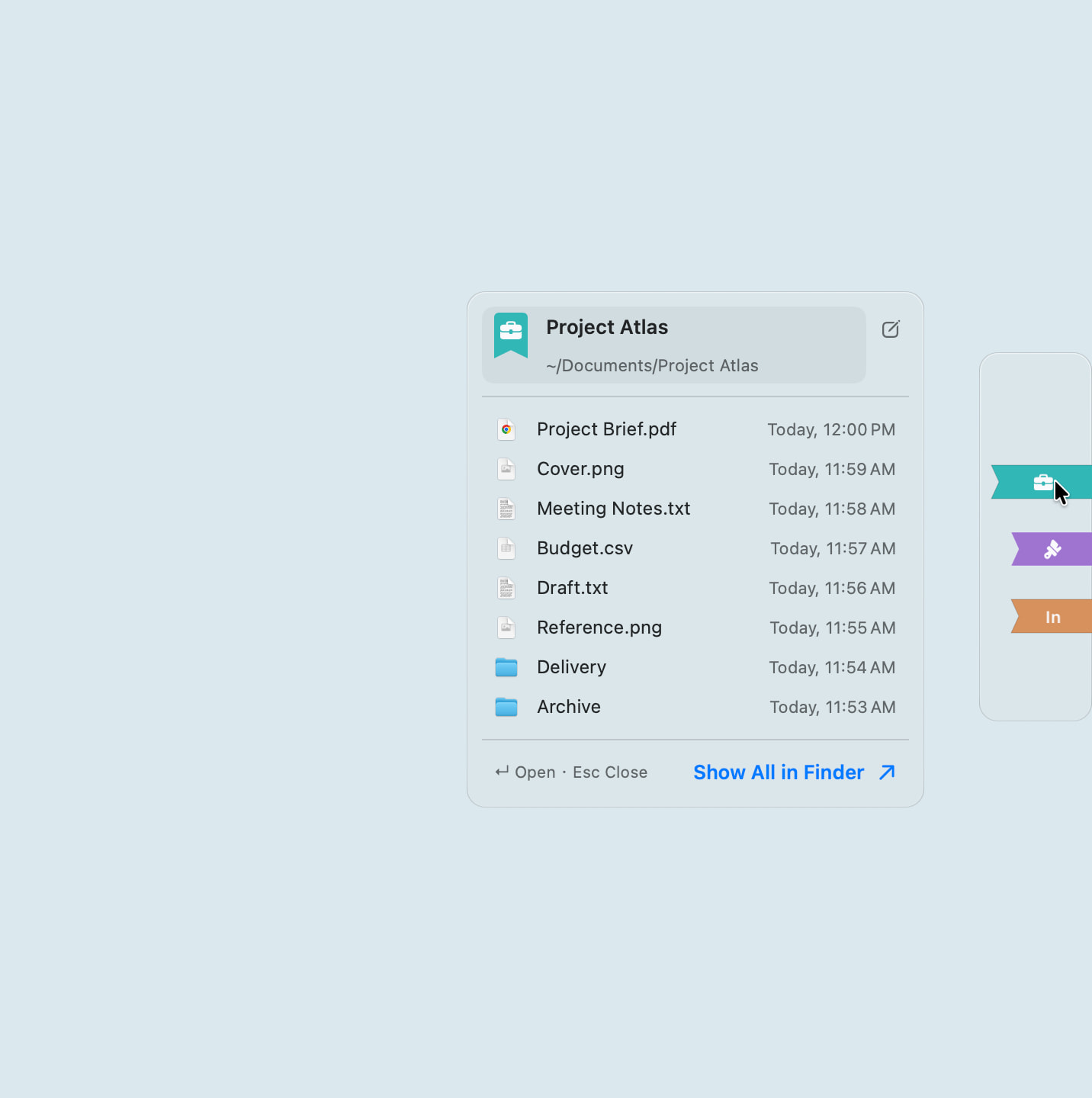
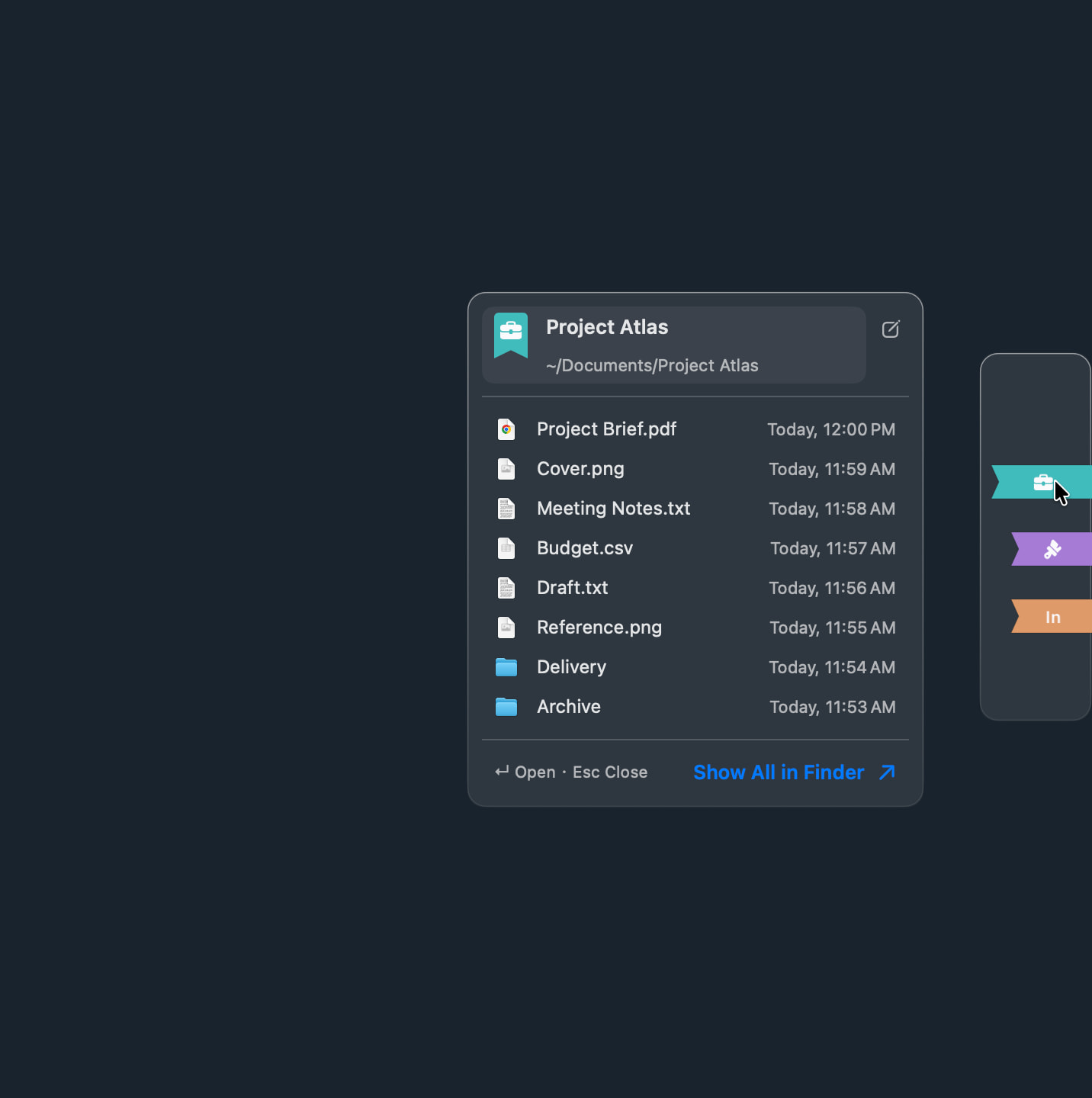
- Add three folders you already use and confirm access in the macOS folder picker.
- Give the bookmarks short display names and distinct colors. This leaves the actual folder names unchanged.
- Choose an edge and position that work with your Dock and app windows.
- Close the manager while keeping EZFolderPin running. Open a bookmarked folder when you need it.
EZFolderPin 1.4.0 brings bookmark editing and preferences into a unified Liquid Glass workbench. This interface is available in the current Mac App Store download.
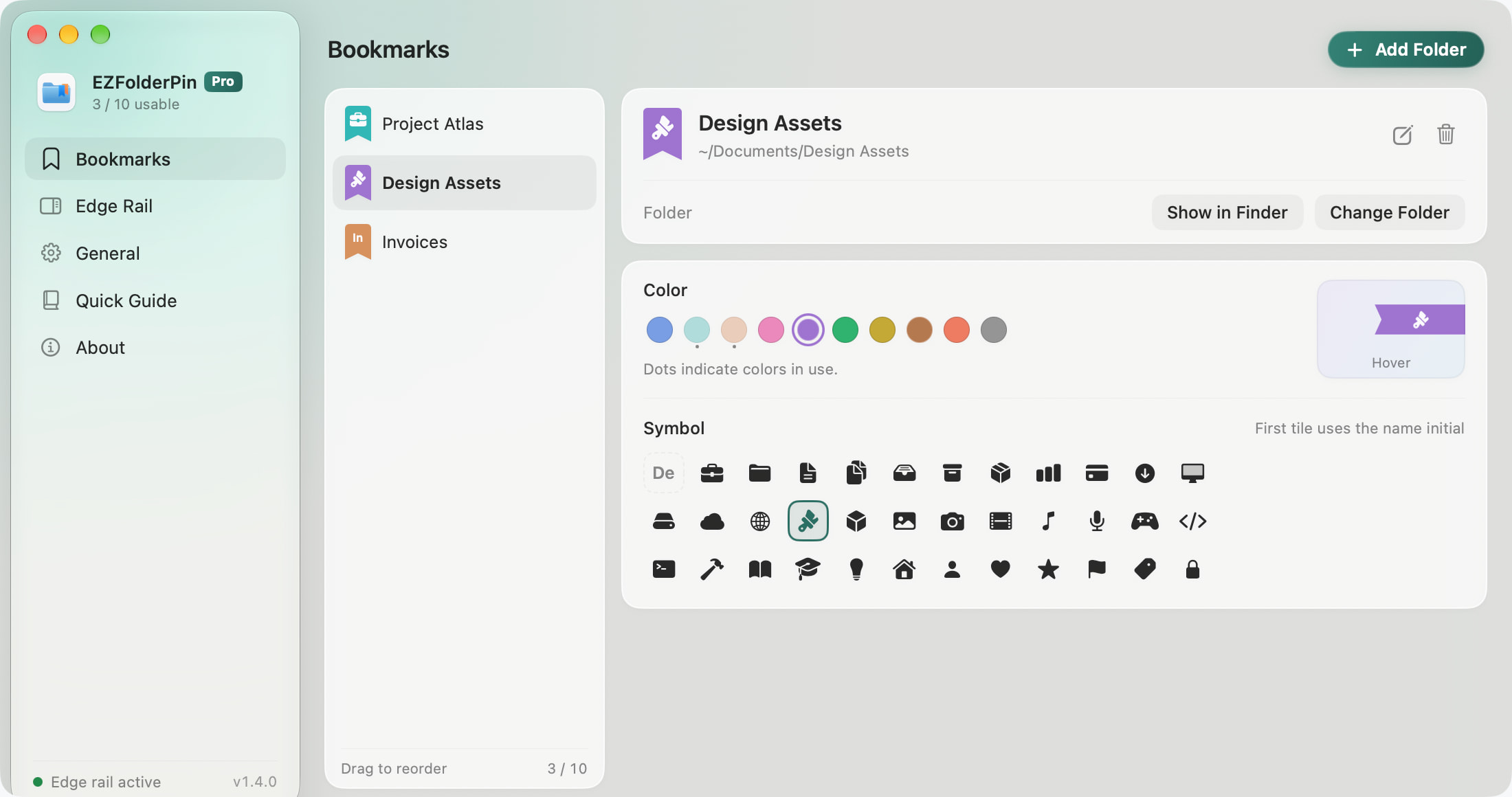
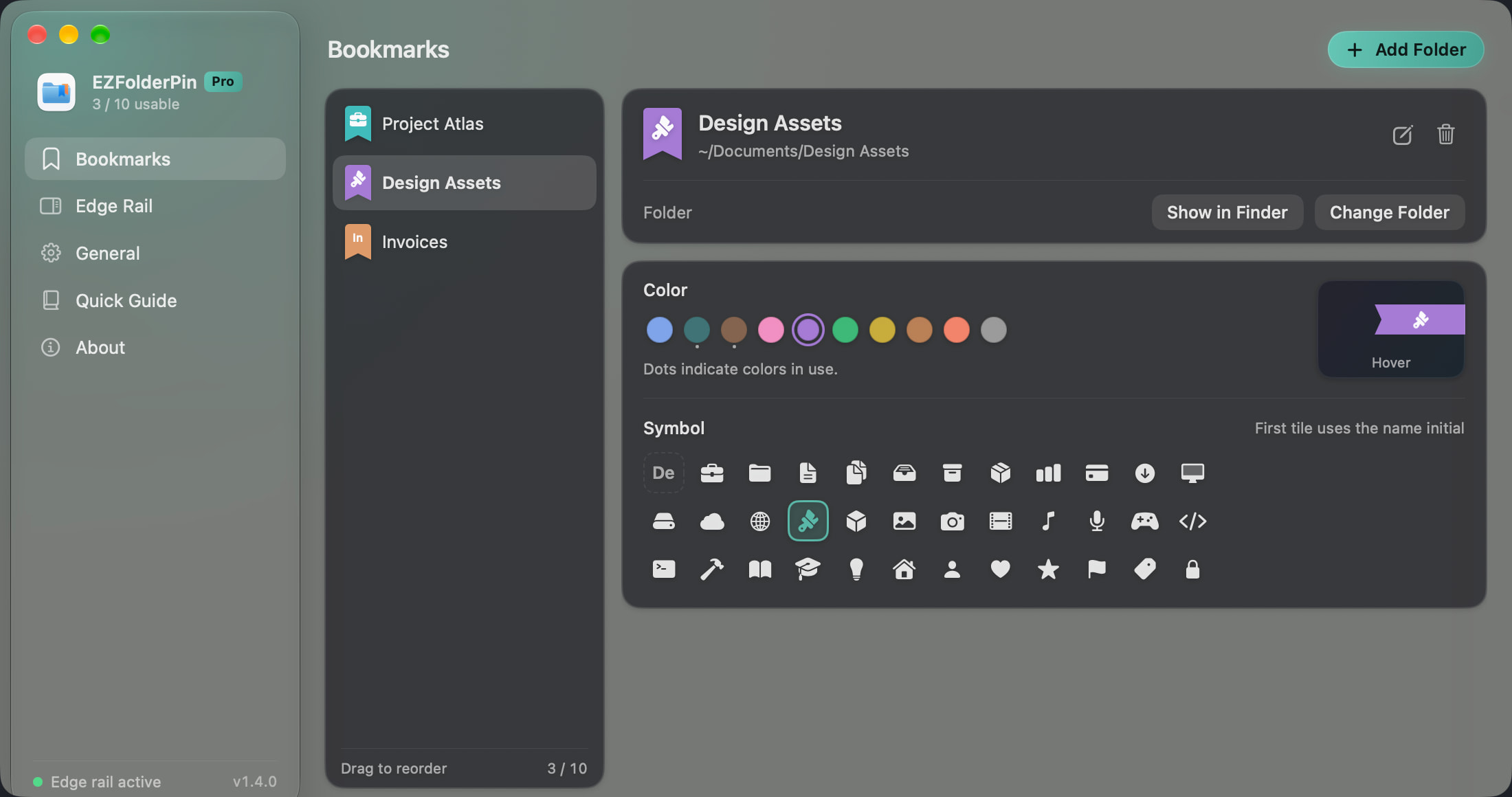
Keep the shortcut list small as projects change
When a project ends, remove its shortcut and add the next active directory. Leave archived work in its existing storage location. Sidebar entries, Dock items and EZFolderPin bookmarks are access points, not backups; external drives still need to be connected.
If three bookmarks cover your routine, they are free forever. EZFolderPin also offers an optional 7-day non-renewing trial and a one-time lifetime unlock for up to 10 bookmarks. There is no subscription, Family Sharing is supported, and the Mac App Store shows your local price.
View EZFolderPin in the Mac App Store. For setup instructions, follow the screen-edge bookmark guide; for an external display, see the multi-monitor guide.