EZFolderPin · Practical guides
Quick Access to Project Folders on a Multi-Monitor Mac
Set up project folder shortcuts on a multi-monitor Mac. Choose the EZFolderPin rail’s display, adjust its position and check placement after reconnecting.
EZFolderPin 1.2.0 · macOS 14 or later
With an external display connected to your MacBook, you might keep your editor or design app on the larger screen and leave references, email, and messages on the laptop display.
Your folder shortcuts can follow that arrangement. For example, you can keep bookmarks for your current project, design resources, and delivery folder along the edge of your main working screen.
This guide walks you through checking your display arrangement, choosing where EZFolderPin’s bookmark rail appears, and checking its placement after disconnecting or reconnecting a display. The three example bookmarks fit within the permanent free allowance.
Check how your displays are arranged
Connect the external display, then open System Settings → Displays.
To place different windows on each screen, use an extended desktop. Check the arrangement so the screens’ left, right, and vertical positions match your physical setup. Move the pointer between them to confirm that the direction feels natural. Apple’s extended desktop guide, Displays settings guide
We will use this example:
| Display | Main role | Folder shortcut placement |
|---|---|---|
| MacBook display on the left | References, email, and messages | Keep your usual window arrangement |
| External display on the right | Editor or design app | Place project bookmarks along its right edge |
Adapt this to your desk. Decide which display holds most of your work before choosing a location for the folder shortcuts.
Choose the display for the bookmark rail
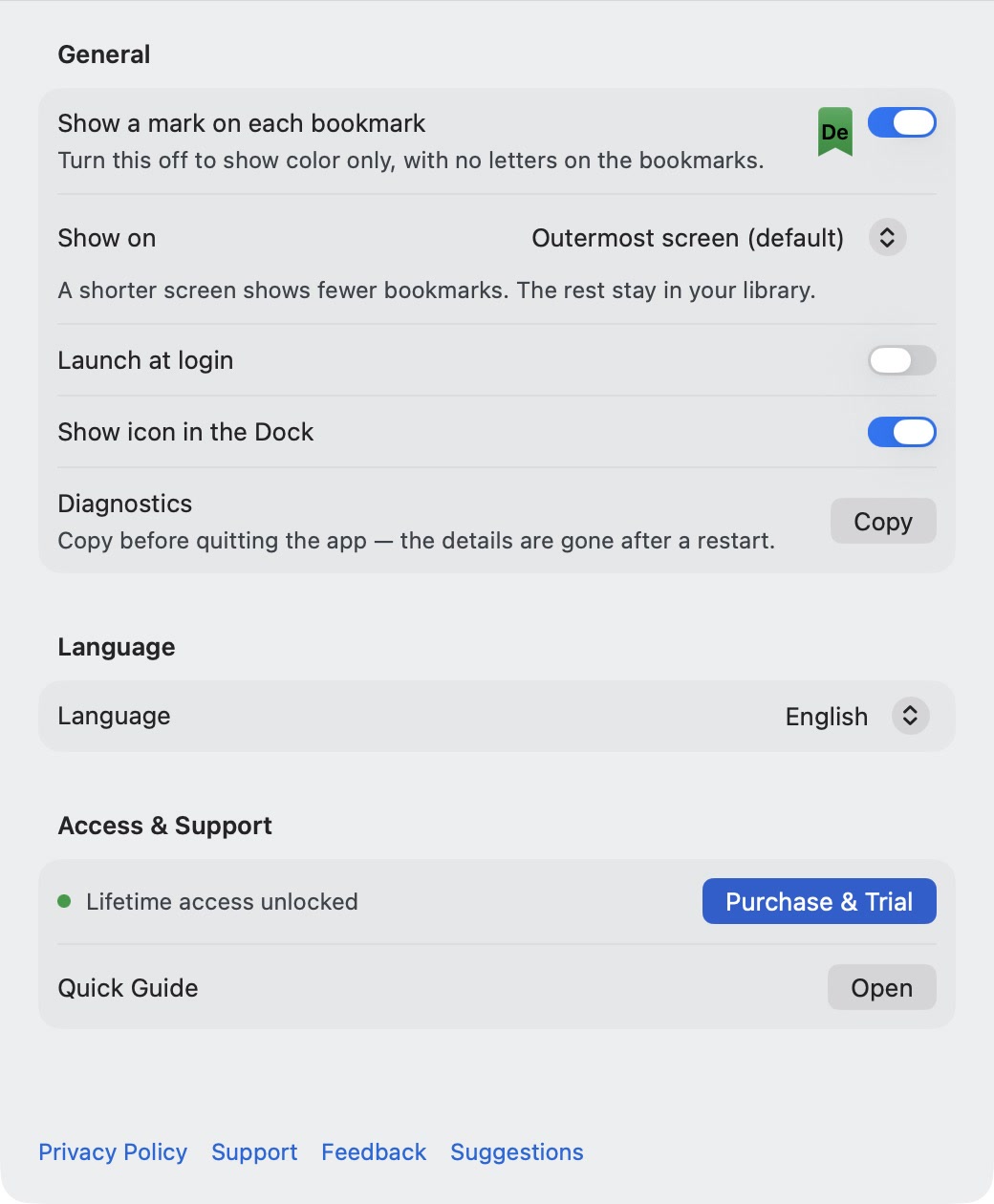
Open EZFolderPin Settings. Under General, find Show on and select the display where you want the bookmarks.
For this example, select the external display on the right. Return to the desktop and check that the rail appears on that screen.
Outermost screen (default) chooses the outermost display for the rail’s docking side. To use a particular display, select it by name.
This setting chooses the screen for the bookmark rail. You can keep your macOS main-display setting and other app windows arranged as you prefer.
Adjust the edge, position, and width
Move the pointer over the rail to reveal its controls.
Open the grip’s docking menu and choose Dock on Left or Dock on Right. Drag the grip to move the group vertically, and drag the width control to adjust the rail’s width.
In our side-by-side example, start with the external display’s right edge. This puts the shortcuts on the outside edge of the combined desktop, giving them an easy location to remember.
If most of your pointer movement happens between the displays, try the other edge of the selected screen. Open a few folders before deciding which placement feels more comfortable.
For keyboard positioning, make EZFolderPin active and choose File → Adjust Edge Rail, then follow the on-screen guidance.
Give three frequent destinations recognizable labels
Use Add Folder in the bookmark manager to choose three directories you already use. For example:
| Folder purpose | Display name | Example color | Example mark |
|---|---|---|---|
| Current work | Current Project | Blue | Pr |
| Reusable resources | Design Assets | Purple | As |
| Files ready to send or export | Deliverables | Brown | De |
Select a bookmark in the manager to edit its name, color, and mark in the inspector. Use a short display name that you recognize quickly; the actual folder name stays unchanged.
To see text marks on the edge bookmarks, enable Show a mark on each bookmark in Settings. Drag the bookmarks to reorder them, putting your most-used destinations first.
Your folders can stay in their existing locations. The bookmarks provide shortcuts, so setting up the workspace does not require reorganizing the project itself.
Try a short working sequence
Return to the editor or design app on your external display and try this sequence:
- Click Current Project to browse the project in Finder.
- Return to your working app and continue editing.
- Click Design Assets when you need a resource.
- After exporting, click Deliverables to check the files you plan to send.
Notice whether the rail is easy to locate, whether the names and colors are recognizable, and whether these are the three folders that deserve permanent shortcuts.
The rail’s display and Finder’s window placement are separate. EZFolderPin sends the folder-opening request to Finder. The Show on setting does not choose which display Finder opens on. If the Finder window appears on another screen, move it where you need it.
Once the arrangement works for you, close the bookmark manager and keep EZFolderPin running to leave the shortcuts at the screen edge.
Check placement when leaving or returning to your desk
When your preferred display is disconnected, EZFolderPin keeps that display selection and places the rail on an available screen. When the same display is recognized again, the rail returns according to the saved selection.
For a temporary trip away from your desk, you can keep the existing display preference. To use a different screen going forward, choose it under Show on.
After reconnecting or waking your Mac, if the rail is not where you expect, check:
- Whether macOS recognizes the external display in Displays settings.
- Whether EZFolderPin is still running.
- Whether the display saved under Show on is connected.
- Whether the rail is on another edge of an available screen.
Moving from a tall external display to a shorter laptop display may reduce the number of bookmarks visible at once. The others remain in your library; open the manager to check them.
Common questions
Can each display have its own separate set of bookmarks?
EZFolderPin 1.2.0 uses one bookmark rail. Show on selects the display that holds it. You can change that display and the docking side.
Does changing the display move my folders?
No. It changes the rail’s location. Your project folders remain where they are.
My display is connected, but an external-drive bookmark still says it is offline.
Display connectivity and drive availability are separate. If the drive connects through the display or a dock, check that it is connected and accessible in Finder. Reconnect or mount it, then try the bookmark again.
Some bookmarks are missing on the smaller screen. Were they lost?
Open the bookmark manager to check. The available screen height affects how many bookmarks appear at once; the others remain saved. Reorder the list to keep your current priorities first.
Start with three frequent destinations on your main working screen, then adjust their placement and order as you use them. You can keep the same folder bookmarks when working at your desk or using the MacBook on its own.
For more help, visit EZFolderPin Support.