Add and open a folder
Open the bookmark manager and choose Add Folder. Select a folder in the macOS picker to grant access. Click its bookmark at the screen edge to open the folder in Finder; hover to see its name and full path.
EZFolderPin Support
Help for the screen-edge bookmark rail, folder access, and purchases in EZFolderPin 1.2.0.
Screenshots from 1.2.0 use example folders. Click any screenshot to view it full-size. Your folder names, paths, purchase status, and appearance may differ.
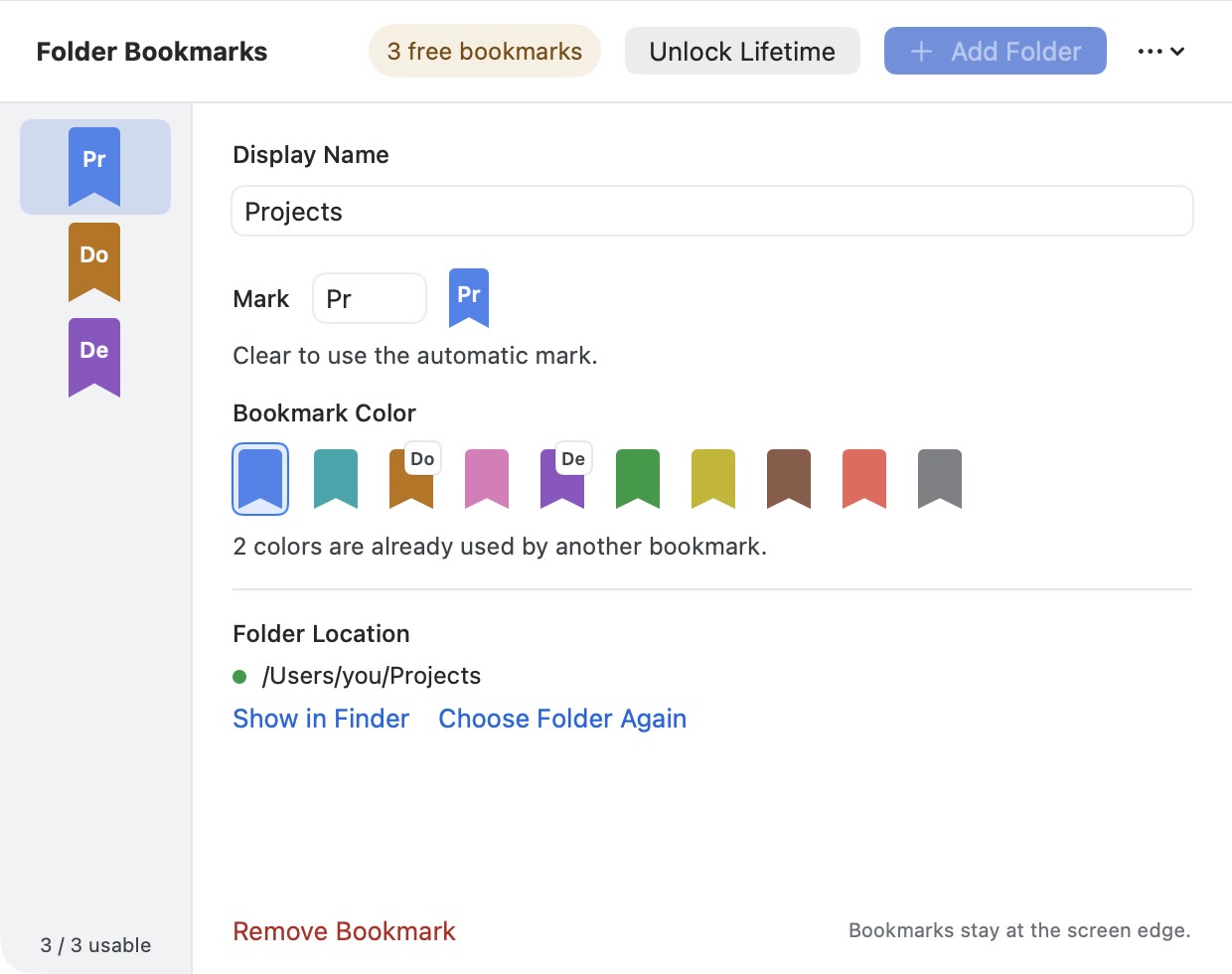
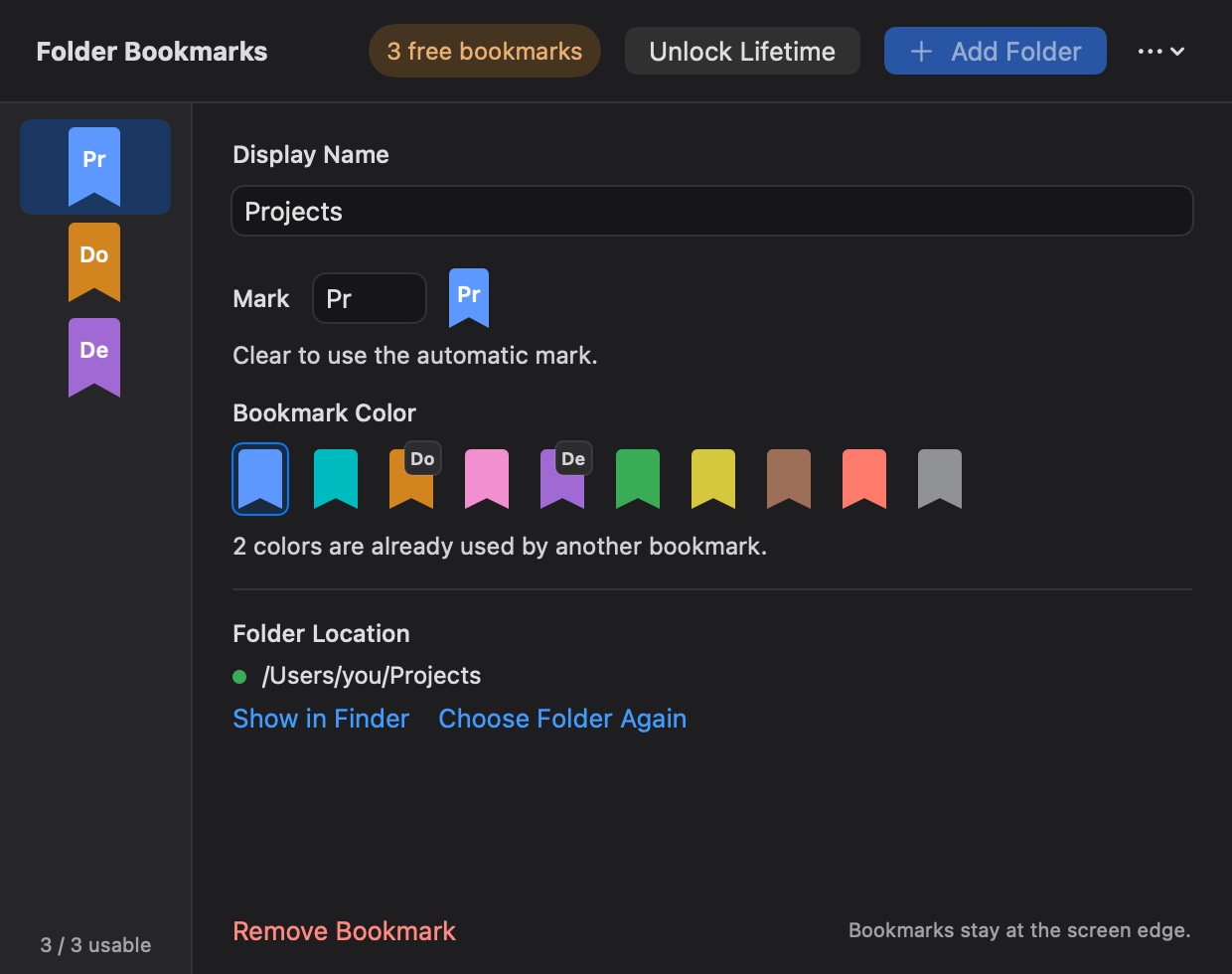
Use Add Folder to choose a folder. Select a bookmark on the rack to edit its name, color, mark, or folder location in the inspector beside it.
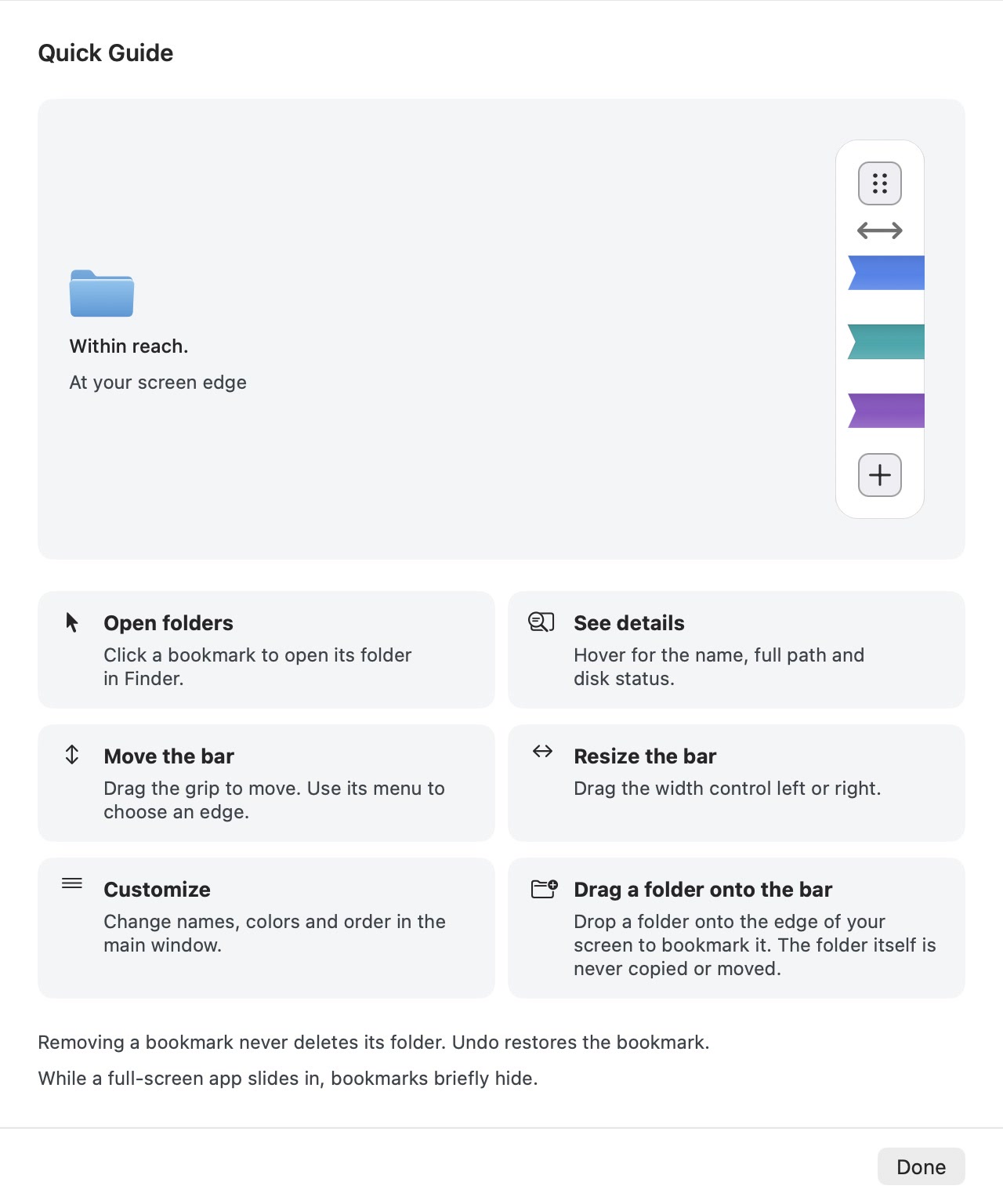
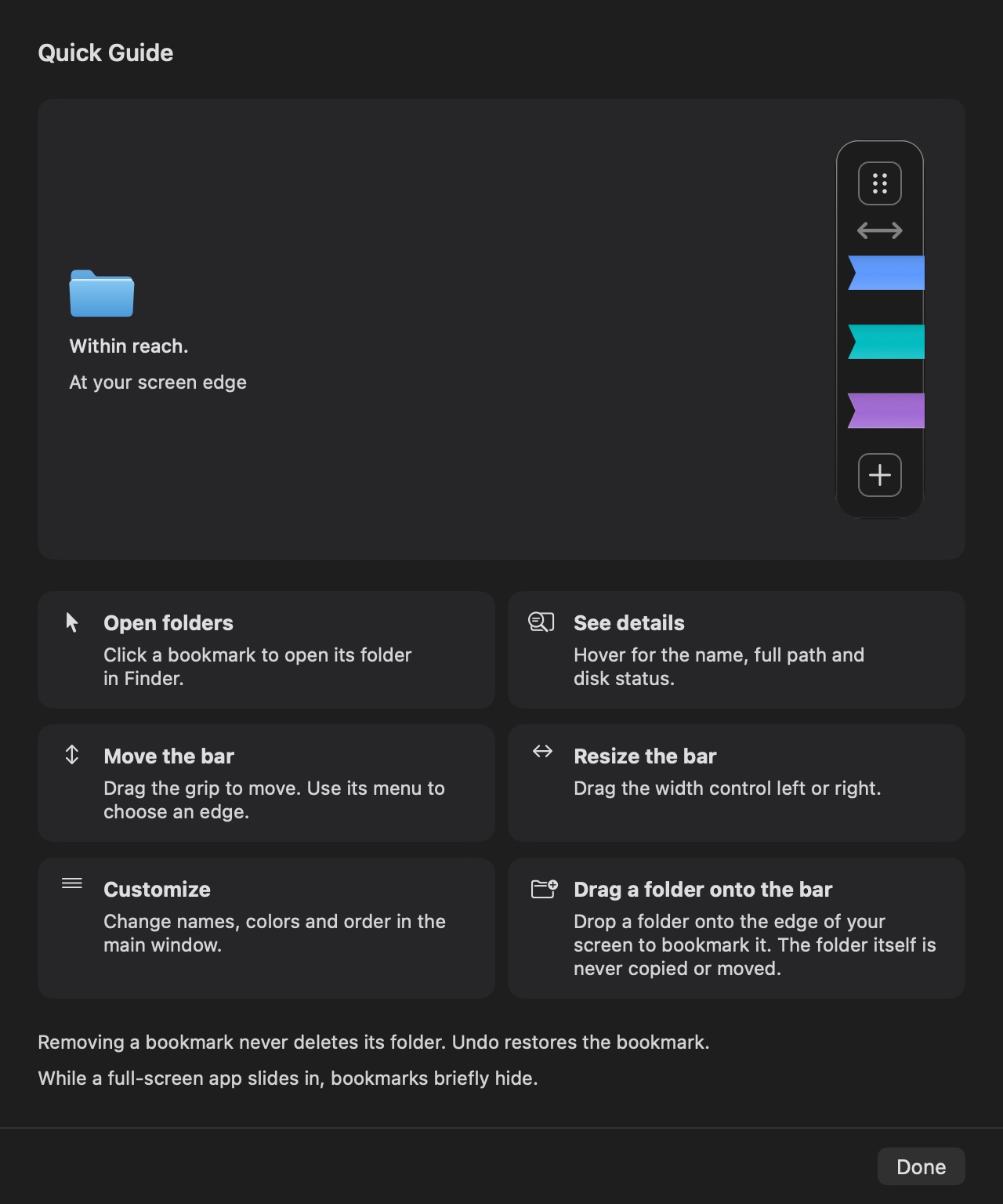
Open Quick Guide from Settings for opening, hover details, movement, width, customization, and drag-to-add instructions.
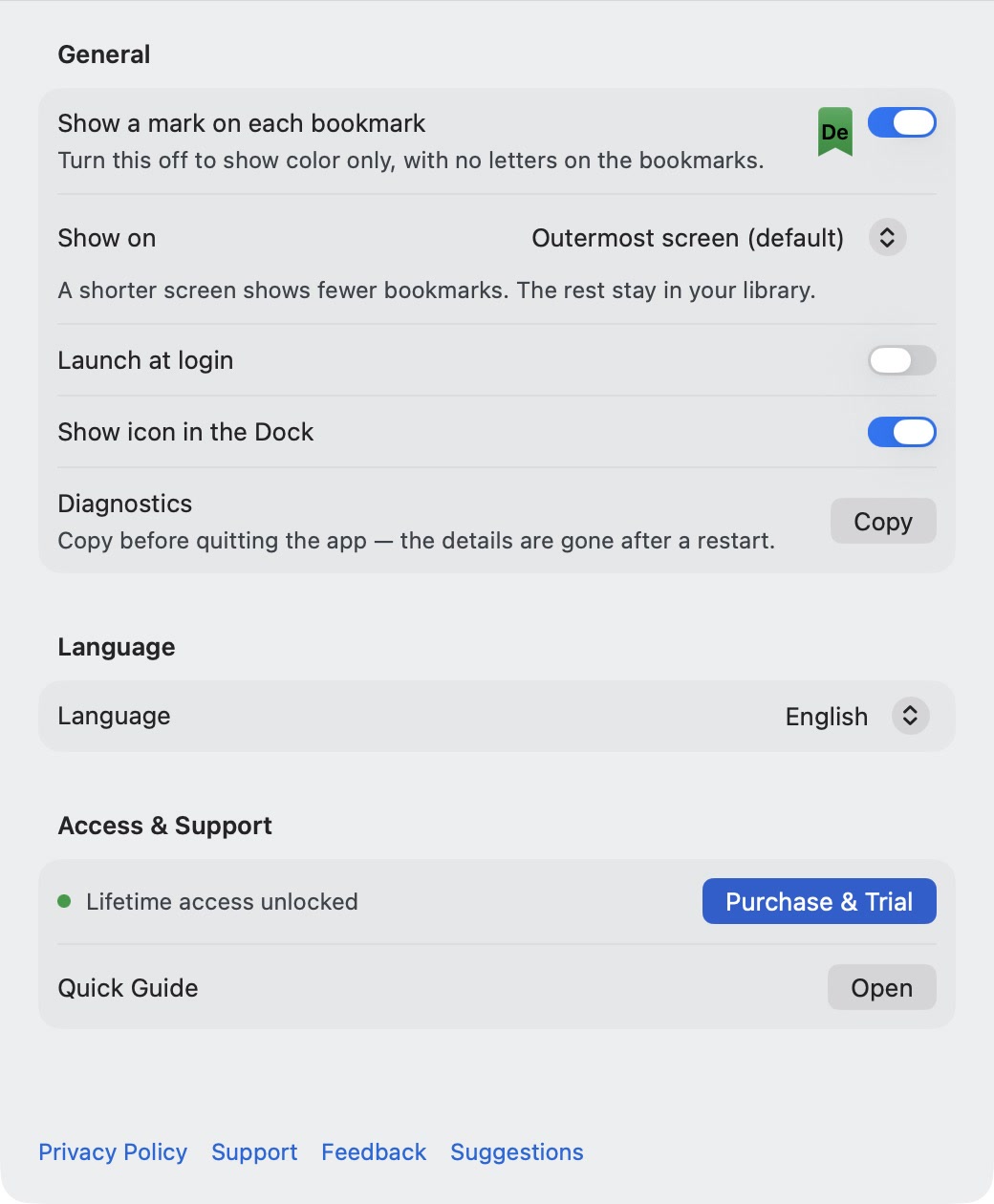
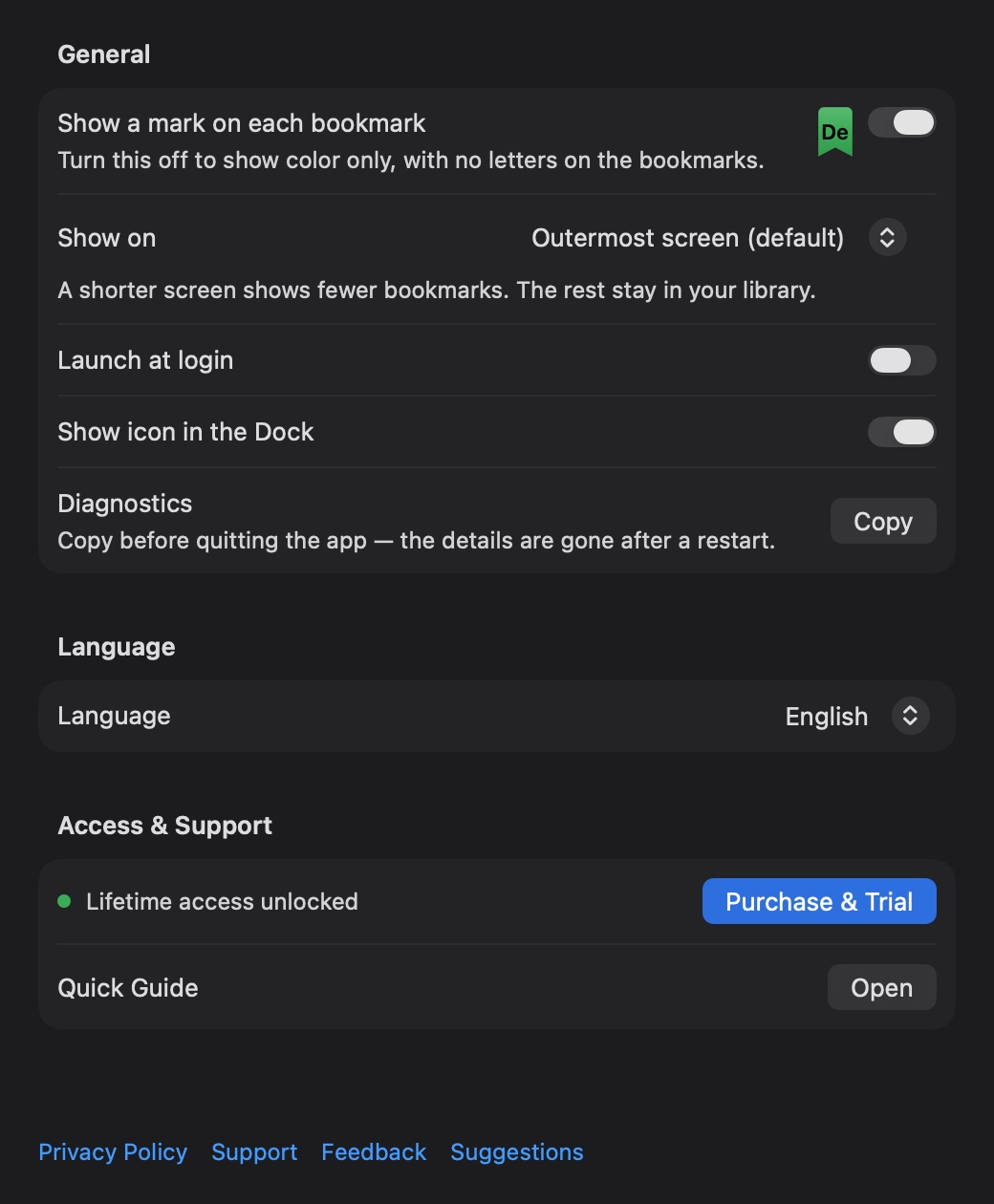
Settings contains language, launch-at-login, Dock visibility, Purchase & Trial, Quick Guide, Privacy Policy, and Support.
Keep 3 bookmarks free forever, including opening, editing, arranging, and adding within the allowance. They are the first 3 in your saved order. Reorder to change which bookmarks are free; removing one brings the next saved bookmark into the allowance. A full trial or lifetime unlock supports up to 10 bookmarks. The number visible at once depends on your screen height.
Use the first-launch setup, Add Folder in the bookmark manager, File → Add Folder, or the + control beside the rail. Choose a folder in the macOS picker. Click its edge bookmark to open it in Finder. Selecting a bookmark on the rack shows its inspector beside it. You can also drag a folder from Finder onto the screen edge; macOS may ask you to confirm access.
Select its bookmark on the manager’s rack to edit its display name, color, and mark in the inspector. The real folder is not renamed. Drag bookmarks to change their order. Removing a bookmark does not delete its folder or files; use Undo immediately if you removed it by mistake.
Hover over the rail to reveal its controls. Drag the handle to move the group up or down, and drag the divider to adjust its width. The docking menu lets you choose the left or right screen edge. File → Adjust Edge Rail also provides keyboard positioning while EZFolderPin is active: Up/Down moves the group, Tab switches to width adjustment, Left/Right adjusts width, Escape exits; Return on the handle opens the docking choices.
Yes. With more than one display connected, choose your preferred screen in Settings. EZFolderPin remembers a disconnected display and returns the rail to it when you reconnect it.
Reconnect or mount the disk in Finder, then try the bookmark again. An offline disk does not require deleting the bookmark. If the app instead asks for renewed folder access, use the recovery prompt to choose the folder again.
Follow the recovery prompt or edit the bookmark and choose the folder again with the macOS picker. Confirm if you are changing the bookmark to a different folder. Its display name, color, and position are preserved.
Read the save error shown in the app and use Retry after resolving the local storage problem. Avoid making repeated changes while a save error is still present. Contact support with the error text if it persists.
No. You can use the permanent free allowance without starting a trial. The seven-day full trial starts only when you choose Start Trial and complete Apple’s confirmation. It is limited to one per Apple Account, does not renew or automatically become a paid charge, and does not restart an already used trial after reinstalling.
Your first 3 bookmarks in saved order remain usable. Extra bookmarks and your preferences stay saved; you can view and reorder extra bookmarks, or remove one and undo its removal. Reordering changes which 3 are free. A lifetime unlock restores access to up to 10 bookmarks without recreating them. Reinstalling does not restart an already used trial.
Open Settings → Purchase & Trial and choose Restore Purchases using the Apple Account associated with the purchase. EZFolderPin asks Apple to refresh verified StoreKit transactions; no EZFolderPin account is needed. The lifetime unlock supports Apple Family Sharing and is a one-time purchase for up to 10 bookmarks. The app shows your local price.
Open Settings to choose English, Simplified Chinese, or System language; configure Launch at Login and Show Dock Icon; and open Privacy Policy or Support. If macOS requires login-item approval, follow the Settings prompt to open System Settings.
No. EZFolderPin saves a local reference to the chosen folder and uses read-only access. Removing a bookmark removes that reference, with temporary undo support; it does not delete the folder. App uninstallation alone may leave local settings behind, and Apple purchase records remain available for restoration.
EZFolderPin
Set up your first bookmarks
Add three free folder bookmarks with EZFolderPin for Mac. Follow the steps to name, color, arrange and recover your everyday folder shortcuts.
Choose an approach
Compare Finder sidebar favorites, Dock folders and EZFolderPin screen-edge bookmarks. Choose folder shortcuts that fit how you work on your Mac.
Arrange a multi-display workspace
Set up project folder shortcuts on a multi-monitor Mac. Choose the EZFolderPin rail’s display, adjust its position and check placement after reconnecting.
These instructions apply only to the earlier 1.1.0 release. Its seven-day trial and one-time unlock support up to eight bookmarks. Update to 1.2.0 on the Mac App Store for three permanently free bookmarks and up to ten with a trial or unlock.
Open the bookmark manager and choose Add Folder. Select a folder in the macOS picker to grant access. Click its bookmark at the screen edge to open the folder in Finder; hover to see its name and full path.
Right-click an edge bookmark to edit it, show the folder in Finder, copy its path or remove the bookmark. Choose a display name and color, and drag bookmarks to change their order. Removing a bookmark does not delete its folder; removals can be undone.
Keep the group on the left or right screen edge and adjust its position and width. Closing the management window leaves the bookmarks at the edge. Settings lets you choose launch at login and whether to show the Dock icon.
An external disk’s bookmark stays when the disk is disconnected. Reconnect the disk before opening it. For a disconnected network share, connect the share in Finder and then try the bookmark again.
Start the free seven-day trial through the App Store to use every feature, with up to eight bookmarks. It does not renew or charge you automatically. Reinstalling the app does not restart the trial.
In 1.1.0, your bookmarks remain and can be viewed and removed. Opening folders, adding, editing and arranging bookmarks pause until you make the one-time purchase. Update to 1.2.0 to use the first three bookmarks in your saved order free forever.
Open Purchase & Trial to buy the one-time unlock or choose Restore Purchases. There is no subscription; the App Store displays your local price. If the app is still locked after restoring, contact support with your app version and the error message, without sending payment details.